
Put Your Black Friday Deal on Your Google Listing
“I’m running a Black Friday sale. Is there anything I should be doing on my Google listing, or is the website enough?”
The website is the place to start, but it’s not the only place your deal can show up. On November 6, Google published a new help page on how offers work on a Business Profile. The short version: your deal can sit right on your Google listing, where people are already looking for a dog trainer. That spot is free. The catch is that Google can also put deals there that you didn’t write.
What an offer looks like on Google
When someone finds your business on Google Search, Google can attach special offers, discounts and promotional badges to your listing. Your deal shows up as a small badge on your listing, and one tap opens the details. Google says offers can also appear when someone is using the AI Overview at the top of the results.
Where those offers come from
Google pulls offers from three places:
- An Offer post you write in your Business Profile. This is the one you control.
- A promotion Google finds on a linked social profile, like the Facebook page connected to your listing.
- A third-party partner that sends offers to Google. Google says partners can only submit offers for businesses they have “a current, direct, and signed agreement” with.
The second one is the sleeper. If last year’s “50% off” post is still sitting on your Facebook page, that’s exactly the kind of thing Google says it can pick up.
Post your sale as an actual Offer
If you signed up for our holiday sales, we’re already lowering the prices on your website and building your sale page and banner. But your website only reaches the people who click through to it. An Offer post puts the deal on Google itself, before anyone clicks anything.
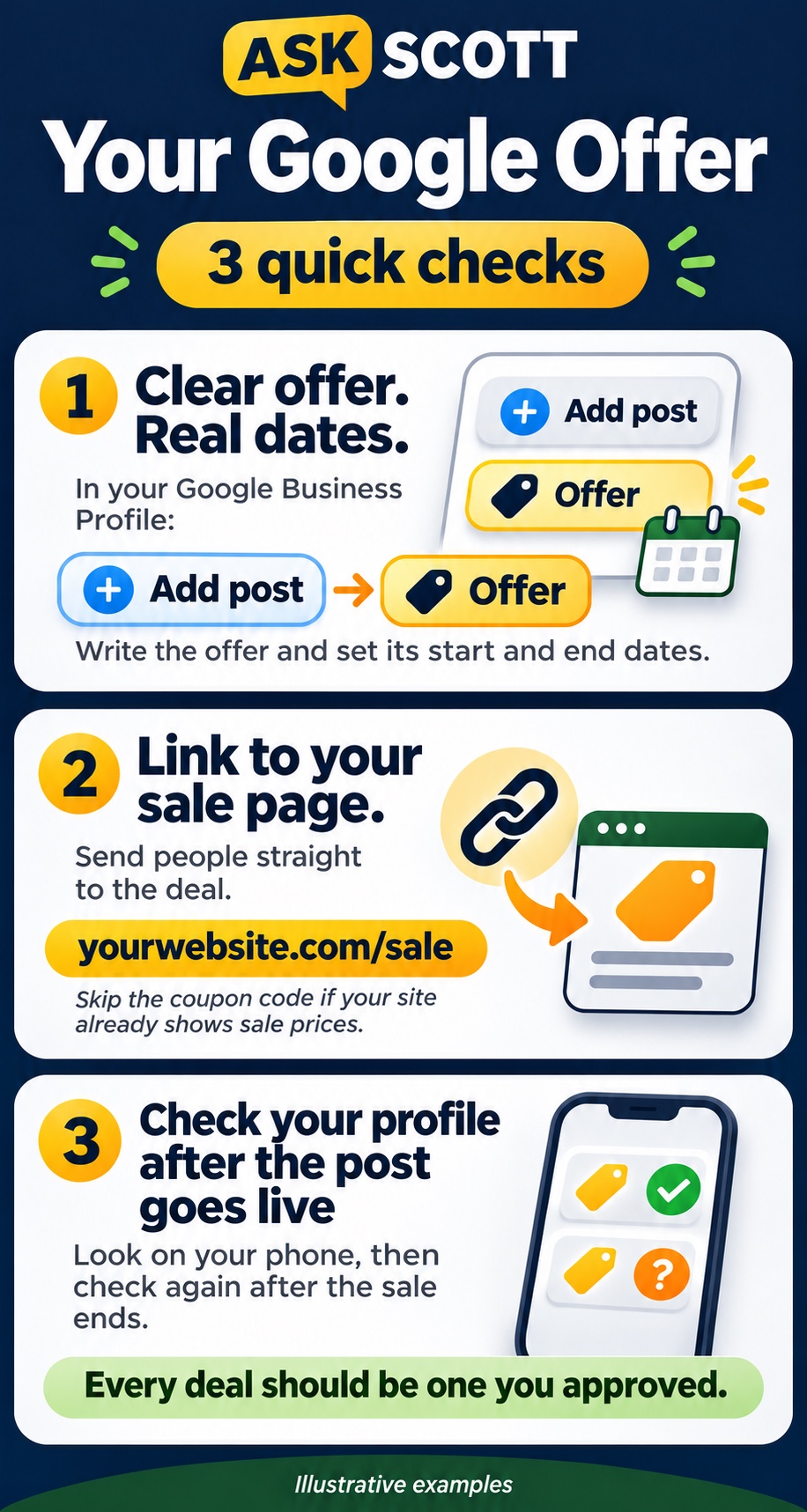
In your Business Profile, choose Add post, then Offer:
- Title: the deal in plain words. “Black Friday: 20% Off Board & Train” beats “Holiday Savings Event.”
- Start and end dates: Google requires them. Use your real sale dates, so the offer comes down on its own when the sale ends. One post per sale.
- Link: your sale page, yourwebsite.com/sale. Before and after the sale, that address sends people to your homepage, so the link never breaks.
- Coupon code: leave it blank if your website already shows the sale prices. A code on top of the sale price invites people to stack the two.
- Phone number: leave it out of the description. Google says it may reject a post with a phone number it can’t connect to your business, and your Call button is already right there.
Google reviews every post before it goes live and doesn’t say how long that takes, so don’t wait until Black Friday morning.
Then look at your own listing on your phone
This is the part people skip. Search your business name on your phone, the way a customer would, and look at what Google shows. Do it after your Offer goes live, and again after the sale ends.
Every deal you see should be one you approved. If one isn’t:
- If it came from your own Facebook page, start there. Take down or edit the old post, since that’s where Google found it.
- If a third party posted it, contact Google Business Profile Support and type “Remove Offers” when it asks what you need. Choose Fix Posts, then email or chat, and tell them who the provider is, what the offer says (a screenshot works), and that you have no relationship with them. Google gives you a way to contact the provider, and once you ask, the provider has 5 business days to take it down. If it’s still there after that, Google has a violation form for it.
A bogus discount with your name on it is worse than no discount at all. A client who calls asking for a deal you never offered shows up annoyed before the first lesson.
Do this before Black Friday
Post your holiday sale as an Offer, with your real dates and a link to your sale page. Then pull up your listing on your phone and make sure the only deals Google is showing are the ones you approved.
And if you haven’t sent us your sale yet, do it now at k9cloud.com/signup. We’ll build your sale page and banner, so your Offer has somewhere to send people.
If you like our content, please add us as a “Preferred Source” to your Google account.